Pioneer DDJ-REV1
The Pioneer DDJ-REV1 is a four-channel battle-style USB controller with an integrated audio interface. This page documents Mixxx-specific mapping behavior; see the manufacturer’s manual for the physical control layout.
New in version 2.5.0.
Requirements
Mixxx 2.5 or newer. A compatibility mode supports 2.5 and 2.6+ behavior; see Compatibility.
Firmware & drivers
Firmware: At the time this documentation was written there were no required firmware updates for the Pioneer DDJ-REV1. Check the Pioneer DJ website for updates.
Drivers: No dedicated driver is required for class-compliant operation. On Windows, ASIO may require installation of the Pioneer audio driver.
Compatibility
Controller: This controller is a class-compliant USB MIDI and audio device, so it can be used without any special drivers on GNU/Linux, macOS, and Windows. However, if you wish to use the ASIO sound API under Windows, please install the latest driver package available.
Mixxx: This mapping supports version-gated behavior for Mixxx 2.5 and 2.6+.
Mode |
Behavior |
|---|---|
Auto |
Uses the non-stems code path on Mixxx 2.5 and the stems code path on 2.6+. |
Force 2.5 |
Disables stems behavior regardless of the running Mixxx version. |
Force 2.6 |
Enables stems behavior regardless of the running Mixxx version. |
Priority gate: On a stems-capable runtime, stems mode takes priority over ScratchBank when both would conflict.
Sound card setup
This controller has a built-in 4-channel sound card with master output. MIC input: 1/4” TR jack. Master output: RCA pin jacks. Headphones: 3.5 mm stereo jack.
In , configure outputs as follows:
Output channel |
Assign to |
|---|---|
1–2 |
Main |
3–4 |
Headphones |
Input Channels |
Assign to |
|---|---|
1-2 (Input 1) |
Microphone 1 |
Input routing
On the rear side is a small knob to select the microphone volume. It adjusts the level of sound input at the microphone input terminal.
See also
When the microphone is not in use, turn the level to the minimum available. The example setups section provides more details about the audio configuration in Mixxx.
Hardware controls
The Mic Level hardware control interacts directly with the integrated sound card and is not mapped to Mixxx.
See also
The gain staging documentation explains how to set your levels properly when using Mixxx.
Mapping description differences
See the Pioneer manual for the physical control layout. The following describes Mixxx-specific behavior.
Compatibility mode supports Auto / Force 2.5 / Force 2.6 mapping behavior.
SHIFT + PLAY/PAUSE supports braking profiles (Off, Classic, Slow) with a default fallback when braking is disabled.
Beatjump and roll pads use hold semantics with configurable roll sizes.
Sampler volume gate and headphone cue logic are tuned for usability.
ScratchBank mapping and FX buffering are refined for stability.
Sampler pad layout options are available (see User configuration options).
Sixteen samples by default (samples 1–16).
Improvements to Library Sort.
Scratch Feel.
Split FX.
STEMS v2.6+.
Additional user configuration options.
Controls
Browse section
No. |
Control |
Function |
|---|---|---|
1 |
SHIFT + LOAD |
Sort by user-selected configuration. Double press toggles ascending/descending. |
2 |
SHIFT + Rotary Selector |
Rotate selector while holding SHIFT to move left or right in the library or open and close the subcrates panel. |
Deck section
No. |
Control |
Function |
|---|---|---|
6 |
SYNC |
Temporary beat sync. If sync lock is active, a short press cancels the lock. |
6 |
SHIFT + SYNC |
Enable sync lock. |
7 |
SHIFT + PLAY/PAUSE |
Braking disabled: stutter-play. Braking enabled: uses the configured start/stop brake profile (Off / Classic / Slow). |
9 |
JOG WHEEL top / side Vinyl mode: |
Top scratches, side bends (or waveform zoom when enabled). CDJ mode: jog uses bend behavior. |
Mixer section
No. |
Control |
Function |
|---|---|---|
12 |
(HEADPHONES) CUE |
PFL toggle with updated head-mix handling (user configuration). |
12 |
MASTER CUE |
Toggles head-mix behavior (user configuration). |
13 |
SHIFT + CHANNEL FADER |
Channel fader start (must be enabled in Utility mode on the controller). |
15 |
SHIFT + CROSSFADER |
Crossfader start (must be enabled in Utility mode on the controller). |
Note
Utility mode and fader-start MIDI can vary by hardware firmware. If fader-start does not respond after changing utility options, restart Mixxx.
Effect section
No. |
Control |
Function |
4 |
LEVEL/DEPTH |
Adjusts the parameter of the enabled effects for FX1 / FX2. |
3 |
SHIFT + FX 1 |
Cycle to the next effect-chain preset after the currently loaded preset (descending order). |
4 |
SHIFT + FX 2 |
Adjust the average BPM up by +0.01 (beat grid lines move closer together). |
5 |
SHIFT + FX 3 |
Adjust the average BPM down by −0.01 (beat grid lines move farther apart). |
4 |
FX1, FX2, FX3 + ROTARY SELECTOR |
Designate the effect for the selected FX button (descending order). |
Sampler section
No. |
Control |
Function |
|---|---|---|
10 |
SAMPLER PADS 1–16 |
Play the loaded sample, or load the selected track when empty. Follows sampler pad layout. |
10 |
SHIFT + SAMPLER PADS 1–16 |
Stop the playing sample, or eject a stopped sample. |
10 |
SAMPLER + LEVEL/DEPTH |
Sampler gain for samplers 1–16 while held (sampler volume gate). |
10 |
SAMPLER PADS 5–8 |
Mixxx 2.6+ dual mode only. When ScratchBank is active, loads scratch samples from 17–24. |
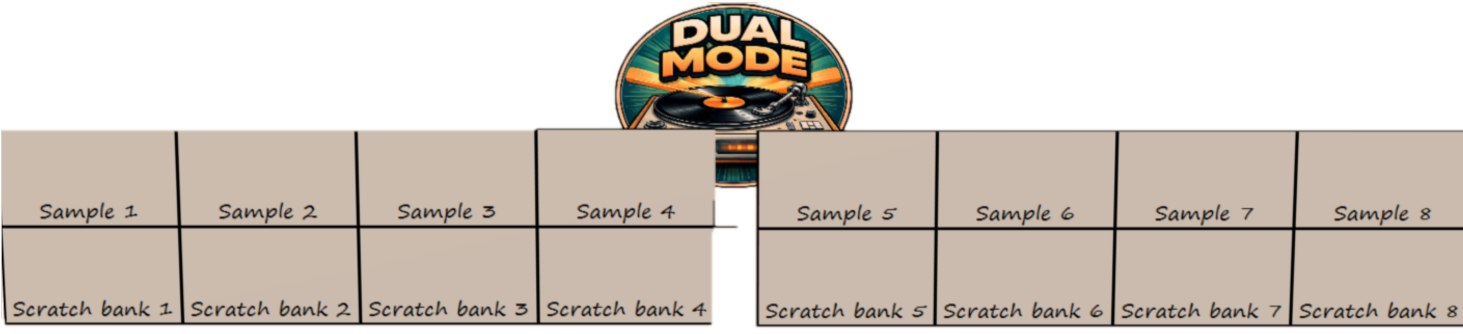
Dual mode: samples 1–4; ScratchBank on pads 5–8.
ScratchBank section (Mixxx 2.5)
When stems priority is not active, ScratchBank uses pads as follows:
No. |
Control |
Function |
|---|---|---|
10 |
SCRATCH MODE pads 1–4 |
Load scratch samples from samples 17–24. |
Note
On a stems-capable Mixxx version, stems mode wins over ScratchBank when both would apply. ScratchBank actions are suppressed in that case.
Stem section (Mixxx 2.6+)
No. |
Control |
Function |
|---|---|---|
10 |
SCRATCH MODE pads 1–4 |
Stem mute toggles (voice / melody / bass / drums). |
10 |
SCRATCH MODE pads 5–8 |
Stem effect toggles (voice / melody / bass / drums). |
10 |
STEM PAD + LEVEL/DEPTH |
Adjust stem volume / effect parameters while held. |
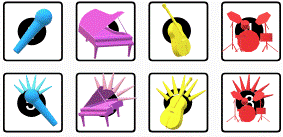
Stems and stem-effect positions: voice, melody, bass, drums.
Beat jump / roll section
No. |
Control |
Function |
|---|---|---|
10 |
Beatjump pads 1–4 |
One-shot beat jump / back / size controls. |
10 |
Beatjump pad 5 |
Previous track (deck must not be playing). |
10 |
Beatjump pads 6 / 7 |
Hold-to-rewind / hold-to-fast-forward. |
10 |
Beatjump pad 8 |
Hold-to-censor ( |
10 |
Roll pads 1–8 |
Hold loop roll with per-pad configurable roll sizes. |
Extra controls section
No. |
Control |
Function |
|---|---|---|
10 |
Scratch Mode SHIFT + Pad1 |
AutoDJ. |
10 |
Scratch Mode SHIFT + Pad2 |
AutoDJ fade to next. |
10 |
Scratch Mode SHIFT + Pad3 |
Toggle Microphone. |
10 |
Scratch Mode SHIFT + Pad4 |
Toggle Record Mix. |
10 |
Scratch Mode SHIFT + Pad5 |
Key Match. |
10 |
Scratch Mode SHIFT + Pad6 |
Beat Grid. |
10 |
Scratch Mode SHIFT + Pad7 |
Pitch Up. |
10 |
Scratch Mode SHIFT + Pad8 |
Pitch Down. |
User configuration options
Controller settings are exposed in mapping options (XML); script defaults apply as fallbacks.
Variable |
Function |
Default |
|---|---|---|
|
Detects the Mixxx version at runtime. |
|
|
Per-deck startup vinyl / CDJ mode. |
|
|
Auto-enable slip on vinyl touch and auto-disable on release. |
|
|
Scratch speed: DEFAULT / PLX / DIGITAL / AKO / STUDIO. |
|
|
Sort library by artist, BPM, date, duration, genre, key, rating. |
|
|
Per-pad roll sizes for roll mode. |
|
|
Use vinyl side jog for waveform zoom. |
|
|
Enable profile-based SHIFT + PLAY braking. |
|
|
Start profile for SHIFT + PLAY: |
|
|
Stop profile for SHIFT + PLAY: |
|
|
Show sampler UI while using the sampler volume gate. |
|
|
Enable ScratchBank where not overridden by stems priority. |
|
|
PFL adjustment: Off / Auto / Studio. |
|
|
LEVEL/DEPTH routing: Off (default) controls both FX units; On routes LEVEL/DEPTH-> FX1 vs SHIFT + LEVEL/DEPTH-> FX2 . |
|
|
|
|
Note
samplePadLayout layouts
- Standard (linear): (Deere, Tango)
Left 1–8, right 9–16 (top to bottom, linear).
- Banked rows: (Late Night)
Top row: left 1–4, right 5–8. Bottom row: left 9–12, right 13–16.
- Mirrored: Default order reversed within each row.
Top 4 3 2 1, bottom 8 7 6 5; deck 2 mirror: top 12 11 10 9, bottom 16 15 14 13.
Known issues
Controller Utility mode may not expose all expected fader-start MIDI variants on the hardware (controller limitation).
Fader-start behavior can depend on controller-side utility state and may require a Mixxx restart after utility changes (controller limitation).
ScratchBank actions are intentionally suppressed when the stems-priority gate is active on a stems-capable runtime.